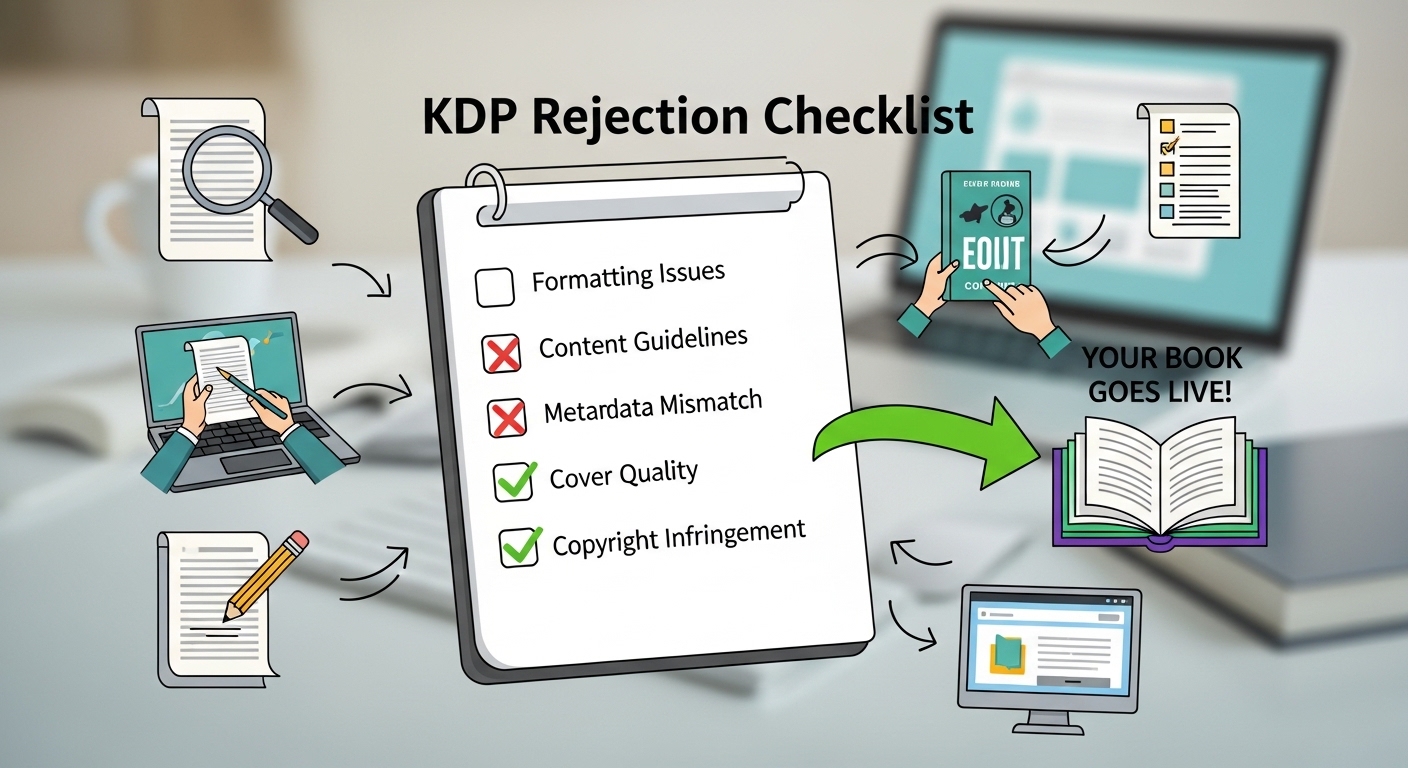
Got a KDP rejection email? Do not panic. Every rejection is fixable — if you know what to look for. This guide breaks down every common Amazon KDP rejection reason, tells you exactly what went wrong, and gives you the specific steps to correct it and resubmit with confidence.
The rejection email arrives, and your first instinct is usually somewhere between frustration and mild panic. You spent weeks — maybe months — writing and formatting your book, and now KDP has knocked it back. Here is the thing: almost every KDP rejection is a completely fixable technical issue. It is rarely about the quality of your writing. It is about a file spec, a metadata rule, or a content policy that your submission ran into.
This guide covers every major rejection type KDP uses, explains why each one gets flagged, and tells you exactly how to fix it — including which of our free formatting tools can help you verify your files before you resubmit.
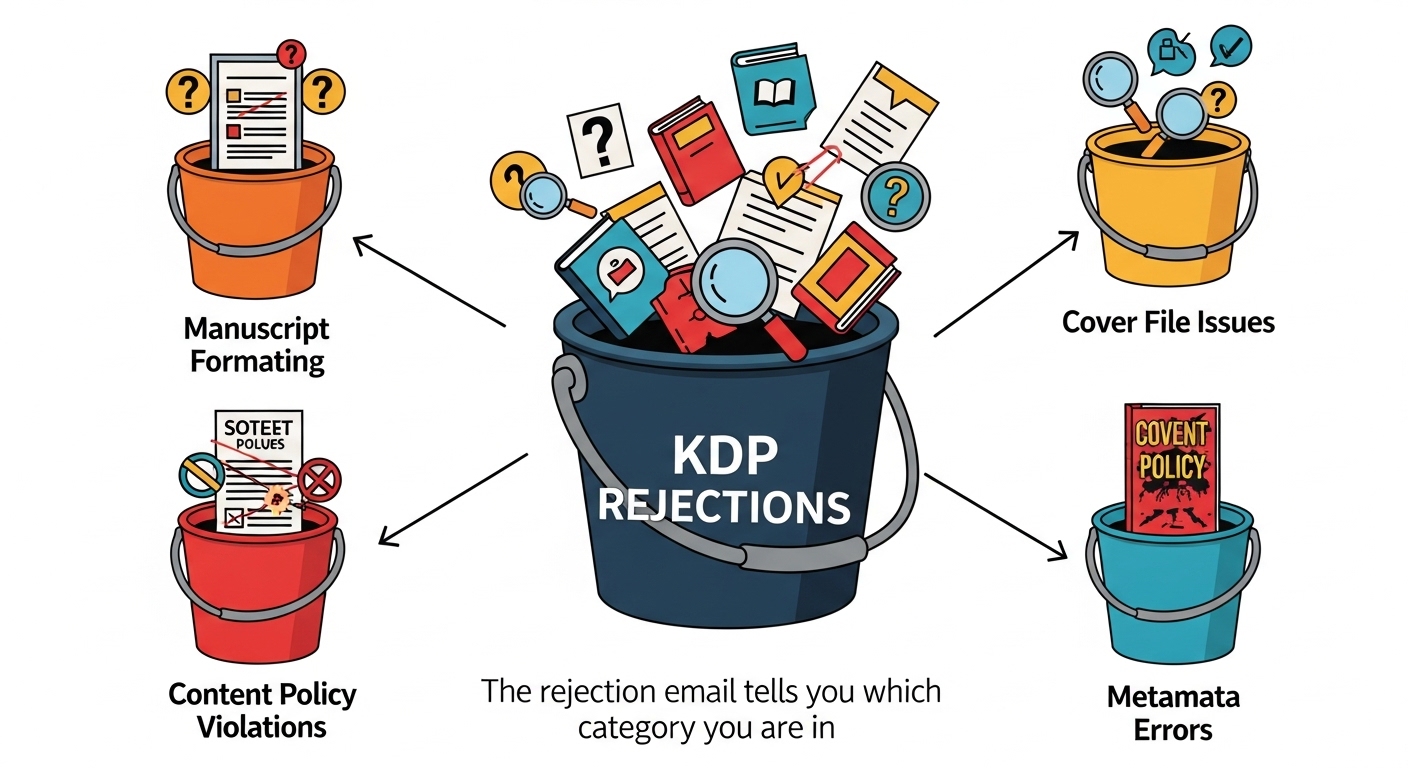
KDP’s review system operates through a combination of automated scanning and human review. The automated system catches most formatting and file spec issues instantly. Human reviewers handle content policy questions, copyright concerns, and anything that requires context or judgment. Understanding which type of review flagged your book helps you understand how quickly it will resolve.
| Rejection Category | Common Examples | Fix Timeline |
|---|---|---|
| Manuscript Formatting | Wrong trim size, content in bleed, low-res images | Same day — fix file, resubmit |
| Cover File | Low DPI, wrong dimensions, barcode area covered | Same day — fix cover, resubmit |
| Content Policy | Copyright, prohibited topics, misleading claims | 3–10 days — human review required |
| Metadata | Keyword stuffing, misleading title/description | 1–3 days after correction |
KDP’s rejection emails are more specific than most people realize. They typically name the exact issue — “your manuscript contains content outside the trim area” or “your cover image resolution is below the minimum 300 DPI requirement.” Do not skip past the boilerplate to look for a general explanation — the specific reason is usually in the first two sentences of the issue description.
Formatting rejections are the most common type, and they are also the easiest to fix. They happen because KDP’s automated system scanned your PDF and found something outside the accepted technical specifications. None of these mean your content is a problem — just your file.
Your manuscript PDF contains text or images that extend into the area KDP uses for trimming. When the physical book is cut to size, anything in the outer 0.125 inch margin gets removed. If your text or images reach that close to the edge, KDP flags it before printing to prevent your content from getting sliced off.
Open your manuscript file and check your inside and outside margins. For most 6×9 paperbacks, you need a minimum of 0.25 inch on all sides, with extra gutter margin on the inside edge depending on page count. Use our free Bleed Calculator and Gutter Calculator to get the exact numbers for your specific page count and trim size. Re-export your PDF with the corrected margins and resubmit.
Use our Bleed Calculator to confirm safe zones, the Gutter Calculator for correct inner margins, and the Paperback Formatter to verify your page setup is correct before exporting.
Your PDF page dimensions do not match the trim size you selected in KDP’s setup. This happens most often when someone exports from Word using a letter-size page setting instead of the correct 6×9 (or whatever trim size they chose) page dimensions.
Before exporting your manuscript, set the page size in your word processor or design software to exactly match your chosen trim size. In Microsoft Word, go to Layout → Size → More Paper Sizes and type in your trim dimensions. See our full KDP Book Sizes chart for all accepted dimensions. Then re-export as PDF and verify the page size before uploading.
Images embedded inside your manuscript are below the required 300 DPI (dots per inch) for print quality. KDP’s system scans every image in your interior file. Screenshots, web images saved at 72 DPI or 96 DPI, and compressed JPEGs commonly trigger this flag.
Re-export or replace every image in your manuscript at 300 DPI minimum. When inserting images in Word, do not copy-paste from a browser — save the image file first and insert it from your hard drive. Set image resolution to 300 DPI in your editing software before inserting. For photographs, use TIFF or high-quality PNG format. Avoid JPEG for anything with fine lines or text inside the image.
A comprehensive formatting reference covering margins, fonts, image resolution, headers, and export settings for both Kindle and print — written specifically for indie authors on KDP.
Your PDF was exported without embedding the fonts used in the document. KDP requires all fonts to be embedded in the PDF so the book prints correctly regardless of what fonts are installed on KDP’s systems. Non-embedded fonts can substitute incorrectly or fail to render entirely.
When exporting to PDF from Word, go to File → Save As → PDF → Options and ensure “ISO 19005-1 compliant (PDF/A)” is checked, or use the Print to Adobe PDF option with “Embed all fonts” enabled. In Scrivener, use the Compile function and select PDF output with font embedding on. If you are using Adobe InDesign, go to File → Export → Adobe PDF → Advanced and set Font Embedding to “Embed All Fonts.”
KDP sometimes flags manuscripts with blank pages at the very beginning or end of the file — particularly if a blank page appears before your title page or after your last content page. This can be caused by extra paragraph returns in your source document. The fix is simple: open your file, use Find & Replace to remove trailing paragraph marks, and re-export.
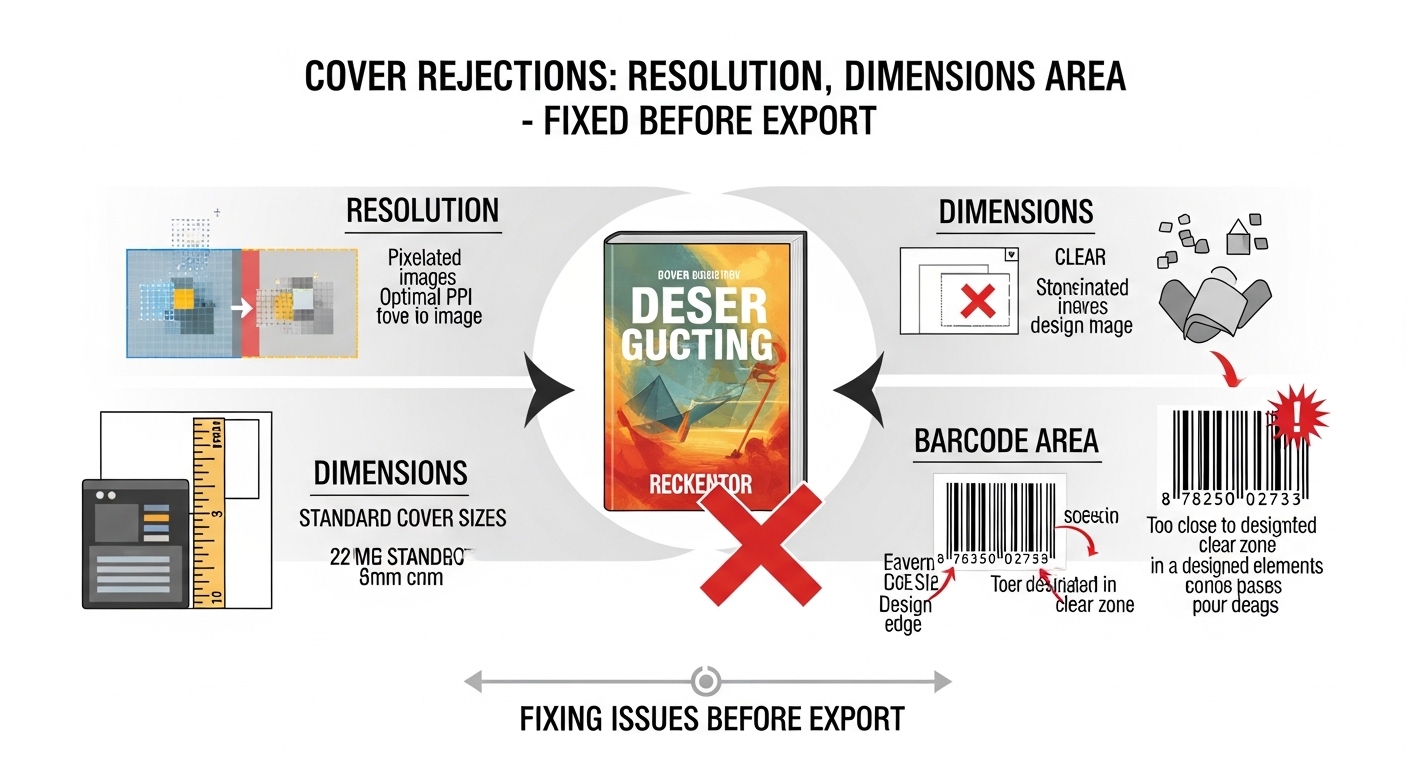
Your cover file is a separate submission from your manuscript. KDP’s cover specs are strict because the cover is what gets printed, distributed to retailers, and displayed everywhere your book appears online. Getting these specs wrong is common — but very fixable.
Your cover image was exported or created at a resolution below 300 DPI. Web-sized images (72–96 DPI) look fine on screen but print blurry. KDP requires a minimum of 300 DPI for print covers to maintain quality on the physical book.
Re-create or re-export your cover at 300 DPI. In Canva, download as PDF Print (which exports at 300 DPI). In Photoshop, go to Image → Image Size, uncheck Resample, and set resolution to 300 DPI — then check that your pixel dimensions are still large enough. The minimum pixel dimensions KDP requires are 1000×625 pixels for an eBook cover, and for print covers, your PDF dimensions at 300 DPI must match your exact trim size plus bleeds. Use our eBook Cover Resizer tool to verify your cover dimensions.
Your cover PDF dimensions must match your chosen trim size exactly, plus the bleed allowance (0.125 inch on all sides) and the correct spine width based on your page count. If any dimension is off — even by a fraction of an inch — KDP flags it. Use our Spine Calculator to calculate the exact spine width for your page count and paper color before building your cover file.
KDP prints an ISBN barcode in the lower-right corner of your back cover. If your design places text, images, or design elements in that space, the barcode cannot be printed correctly and your submission is rejected. Keep the lower-right corner of your back cover clear — at minimum a 2×1.2 inch clear area with a white or light background.
If your book is under 100 pages, the spine is too narrow to safely contain text. KDP requires a minimum spine width before allowing any spine text. Attempting to add a title or author name to a spine that is thinner than ~0.25 inches will trigger a rejection. The fix: remove spine text entirely for short books. For books near the threshold, use our Spine Calculator to verify your exact spine width before adding any text.
Learn what makes a cover work commercially — genre conventions, typography rules, hierarchy, and how to brief or evaluate a cover designer. Helps you avoid costly cover revisions and re-rejections.
Content policy rejections involve a human review and take longer to resolve. They are also the ones that require the most careful attention because some content issues can result in account warnings if they recur. That said, most first-time content rejections are genuine misunderstandings or oversights, not deliberate violations.
Your manuscript contains content that KDP’s system or reviewers identified as belonging to someone else — song lyrics, poetry, book excerpts, trademarked phrases, or substantial quotations from copyrighted works without permission. Even short lyrics can trigger this. “Fair use” is not a KDP concept — their system flags the use and requires proof of rights.
Remove any content you do not own the rights to. If you have licensed the content, you will need to provide documentation to KDP through the review process. For song lyrics specifically: even four lines require explicit licensing from the rights holder. Most authors are surprised to learn they need permission for this. The safest route is to paraphrase or reference what the song conveys rather than quoting it directly.
KDP maintains a list of prohibited content categories including: pornographic material not properly age-gated, content promoting illegal activity, violent or hateful content targeting individuals or groups, and content that glorifies or facilitates serious harm. If your content falls near the edge of any of these categories, it may be flagged for review. The rejection email will specify which policy was triggered — read it carefully before deciding how to respond.
If your book claims to offer something it does not deliver — a “guide” that contains only three pages of substance, a “complete course” that is a repackaged public domain text, or a “new release” that is a word-for-word duplicate of a previously published work — KDP will flag it. Amazon has become increasingly aggressive about low-quality content since 2023. The fix is to ensure your book actually delivers what its title, subtitle, and description promise.
KDP prohibits including search keywords, promotional phrases, or ranking claims in your title or subtitle as submitted to the publishing system. Titles like “Best Diet Book 2026 — Weight Loss Tips For Beginners — #1 Self Help” violate KDP’s metadata guidelines. Your title on KDP must match the title as it appears on the book’s cover. You have seven separate keyword fields for SEO — use those instead.
Descriptions that promise “FREE BONUS” content, claim the book contains external links to gated content, or describe the book as something significantly different from what it is will trigger a rejection or takedown. KDP also restricts claims like “Amazon bestseller” in descriptions unless the claim is current and provable at time of publication.
Since 2024, KDP has significantly tightened enforcement on subtitles that are essentially keyword lists. Subtitles like “A Guide For Beginners, Intermediates, Entrepreneurs, Business Owners, Students, and Everyone Who Wants to Succeed” are now being flagged more frequently. Keep your subtitle descriptive of the book’s actual content.
The resubmission process is straightforward once you have fixed the issue. Here is the exact path:
KDP’s online previewer (available after you upload your manuscript) shows you exactly how your book will look — including whether anything is outside the safe zone. Use it on every upload, not just your first. It catches most formatting issues before they become a rejection email.
The best rejection is the one that never happens. These free tools at KDPFormatters.com exist specifically to catch the most common issues before you submit:
| Tool | What It Prevents |
|---|---|
| Bleed Calculator | Content outside trim area rejections |
| Gutter Calculator | Insufficient inner margin rejections |
| Spine Calculator | Spine text on too-narrow spine rejections |
| Book Sizes Chart | Incorrect trim size page dimension errors |
| eBook Cover Resizer | Cover dimension mismatches for Kindle |
| Paperback Formatter | Complete page setup and margin verification |
Scrivener compiles manuscripts directly to KDP-ready formats with correct margins, page sizes, and embedded fonts — eliminating most formatting rejections at the source. This guide walks through the full Scrivener-to-KDP workflow for authors new to the software.
Use our free suite of KDP formatting tools to verify every dimension, margin, spine width, and cover spec before uploading. Fix issues before they become rejections.
The right reference books can save you hours of trial and error. These are the ones that actually address formatting, metadata, and KDP publishing workflow in practical, usable detail.
Everything authors ask after getting a rejection email, answered clearly.
Use our free suite of KDP formatting and calculation tools — bleed checker, gutter calculator, spine calculator, and more. Catch every rejection-causing error before you submit.
🛠️ View All Free KDP Tools →