A well-set-up series on Amazon automatically sells your backlist for you. When a reader finishes book one and finds books two and three waiting on the same series page, your conversion rate doubles. This guide shows you exactly how to set up, link, and optimize your KDP series — from the first upload to a fully connected series page.
Amazon’s series feature is one of the most underused tools in self-publishing. Authors who set up their series correctly get a dedicated series page, an automatic “next in series” prompt after every book in the Kindle app, and read-order sequencing that makes it impossible for a reader to accidentally buy book three before book one. Authors who skip the setup get none of that — and they leave a significant amount of organic sales on the table.
The technical side of setting up a KDP series takes about three minutes per book. The strategic side — what to name it, how to structure it, and how to use the series page to maximum effect — takes a bit more thought. This guide covers both.
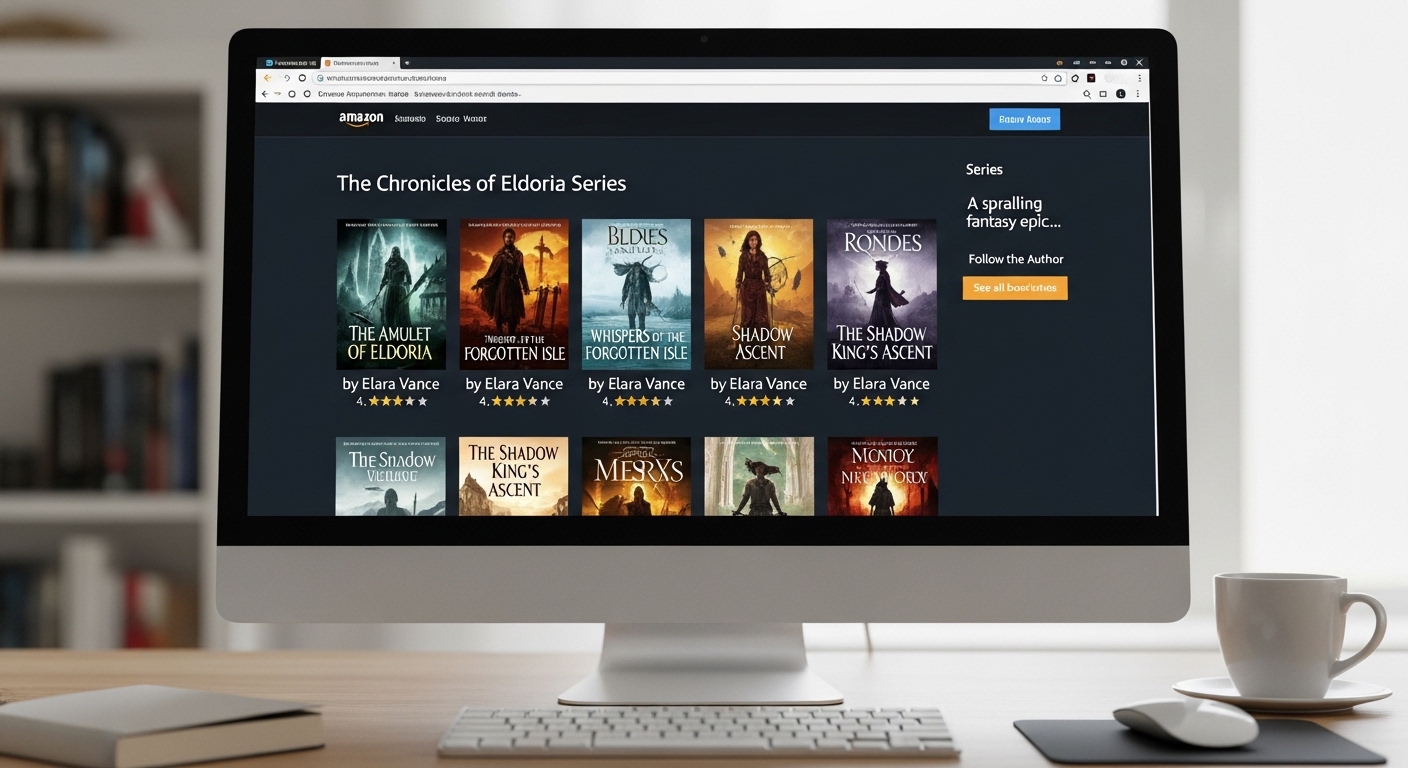
When you correctly set up a book series on KDP, Amazon creates a dedicated series page at a URL like amazon.com/dp/B0XXXXXXXX/series. This page shows all your books in numbered read order, your series description (if you add one through Author Central), and the combined review count across the whole series. It functions like a mini-storefront for your catalog — and it is completely free.
Beyond the series page, the Kindle app shows a “next book in series” card immediately after a reader finishes the last page of any Kindle book in a properly linked series. This is the single most powerful organic conversion tool in digital publishing. It appears at exactly the right moment — when a reader has just finished your book and the emotional investment is highest — and it takes them directly to buy the next one with a single tap.
Authors who do not set up their series metadata miss all of this. Their books exist as isolated titles on Amazon rather than as a connected catalog. The difference in read-through rate between a properly linked series and an unlinked one is dramatic — some authors report read-through rates doubling or tripling after properly setting up their series metadata.
Read-through rate is the percentage of readers who buy book two after finishing book one, book three after finishing book two, and so on. A series with a 50% read-through from book one to book two earns dramatically more per acquired reader than a standalone with a 0% carry-forward. Good series setup maximizes this number by reducing friction between books.
Your series name is a permanent part of your books’ metadata on Amazon. Changing it later is technically possible — but it requires updating every book in the series individually, and the series page itself can take days or weeks to reflect the change correctly. Choose well the first time.
| Format | Example | Works For |
|---|---|---|
| World / Setting name | The Ember Vale Chronicles | Fantasy, sci-fi, historical |
| Character name | A Jack Reacher Thriller | Detective, thriller, action |
| Thematic descriptor | The Cozy Cottage Mysteries | Cozy mystery, romance |
| Location-based | The Millhaven Falls Series | Small-town fiction |
| Concept-based | The Founder’s Playbook Series | Business non-fiction |
KDP already appends “Book 1 of X in the [Series Name]” automatically on your listing. If your series name is “The Dark Water Chronicles Series,” Amazon will display “Book 1 of 3 in the The Dark Water Chronicles Series Series” — which looks amateur. Keep the series name clean without “Series,” “Books,” or “Collection” at the end.
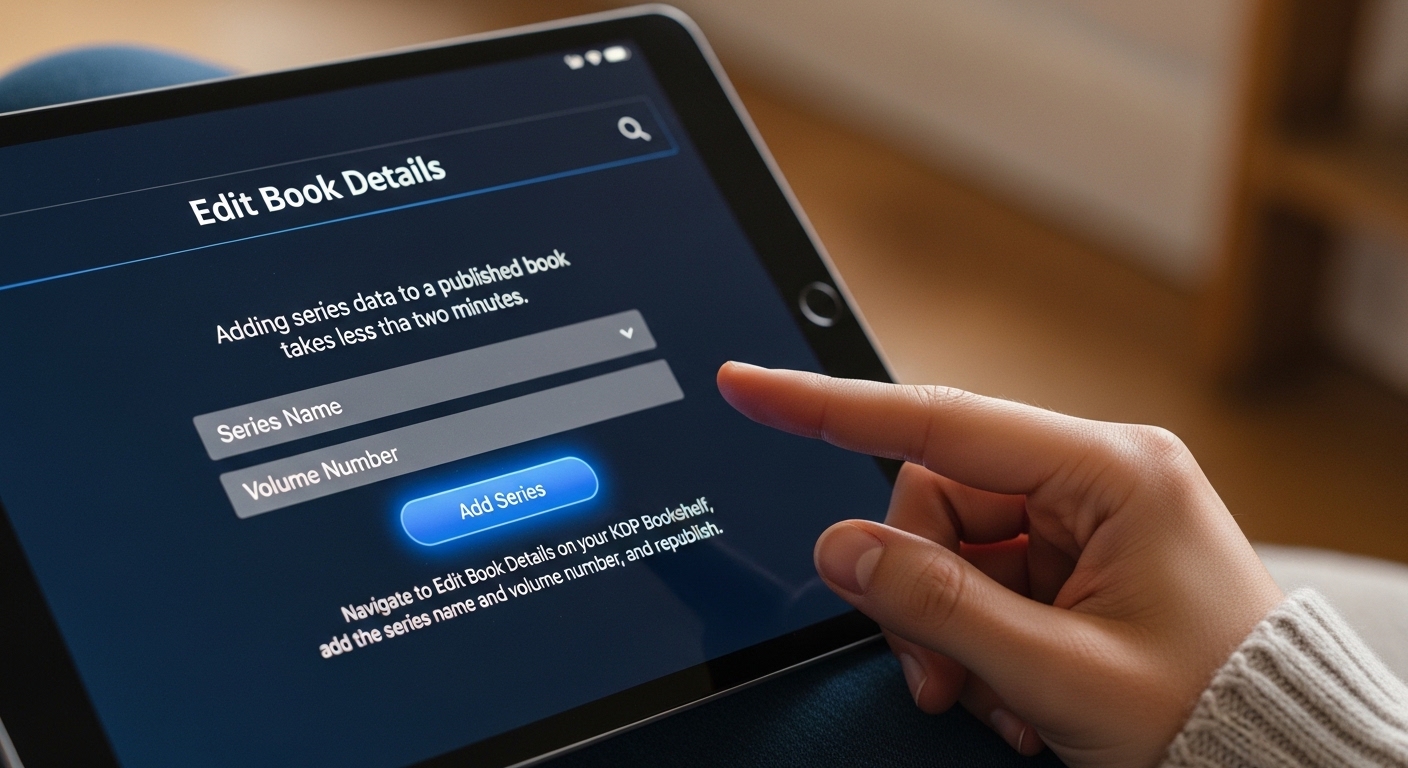
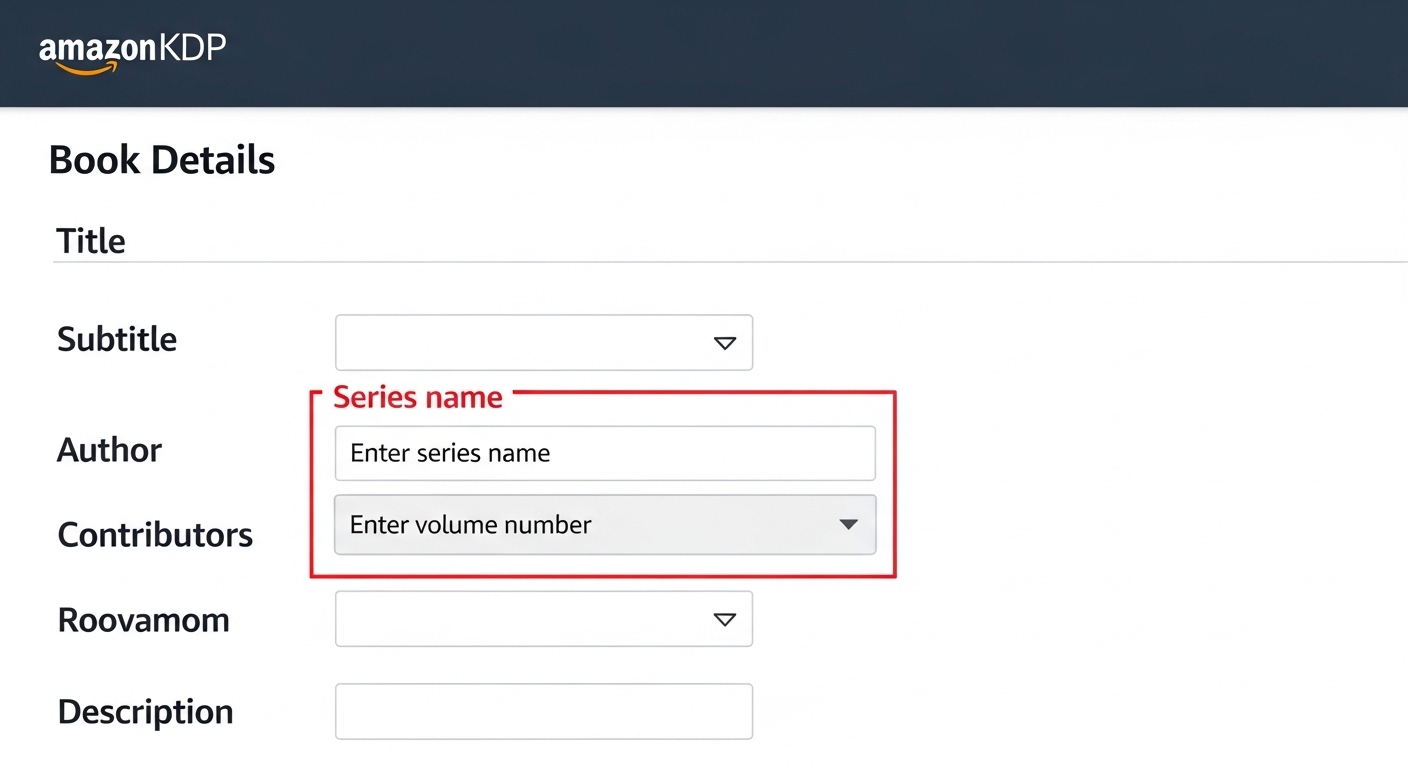
The series fields are in Section 1 (Book Details) of your KDP upload. Here is exactly where to find them and what to enter:
Enter your series name exactly as you want it displayed. This field is case-sensitive — “Dark Water Chronicles” and “dark water chronicles” are treated as different series by Amazon’s system. Use title case and be consistent across every book you publish in this series. Do not include “Book 1,” “Vol. 1,” or similar numbering in this field — that goes in the separate volume field.
Enter the book’s position in the series as a number: 1, 2, 3, and so on. Amazon uses this number to sort books on your series page into read order. For prequel novellas or companion books, you can use decimal numbers like 0.5 or 1.5 — Amazon handles these correctly and positions them between the whole-number volumes on the series page.
New authors sometimes look for series settings in the wrong place. The Series Title and Volume Number fields are in Section 1: Book Details, directly below the Subtitle field. They are not in the Advanced Metadata section, the Content section, or anywhere else. Scroll down past the Subtitle field and you will find them.
Once your series is set up, here is how it displays under your book title on Amazon:
Book 1 of 3 in the Ember Vale Chronicles
Volume 1 · eBook + Paperback
Volume 2 · eBook + Paperback
Volume 3 · eBook + Paperback
Amazon does not create a series page the moment you enter a series name. The series page is created automatically once you have at least two books live on Amazon with the same series name and the same author name. One book with a series name entered does nothing — the series page appears when the second book goes live.
The timeline from publishing book two to seeing a series page is typically 24–72 hours, though it can occasionally take up to a week on first setup. Once created, the series page gets its own URL and shows up in Amazon search results when readers search for your series name directly.
Every reader who clicks “Follow this series” receives an email notification from Amazon when you publish a new book in the series. This is a free, Amazon-managed launch list that grows passively as your readership builds. Readers opt in on their own — you never see their email addresses, but Amazon sends the notification for you automatically.
How to structure a multi-book series, create compelling story arcs across volumes, build a world readers return to, and write book endings that drive read-through to the next volume. Essential reading before you start planning your series.
* Affiliate link — we may earn a small commission at no extra cost to you.
If you have already published one or more books on KDP without setting up a series — this is extremely common — you can add the series metadata retroactively. It is a straightforward process, though it requires updating each book individually.
Changes typically go live within 24–72 hours. Repeat for every book in the series, using the exact same series name each time. Once all books have the same series name and at least two are live, Amazon creates the series page automatically.
If book one has “The Ember Vale Chronicles” and book two has “Ember Vale Chronicles” (without “The”), Amazon treats these as two completely different series and will not link them. Check for extra spaces, different capitalisation, or missing articles. The series names must be identical, letter for letter, across every book.
The KDP dashboard handles the technical series linking. Author Central at author.amazon.com handles the series page content. These are two separate systems, and most authors only use one — the KDP dashboard — which leaves half the series page optimization untouched.
Author Central lets you write a description specifically for your series page — separate from any individual book description. This is prime real estate: it appears at the top of your series page and is the first thing a reader sees when they land there. Use it to sell the series as a whole, not just a single book. Describe the overarching story world, the tone, and who the series is for. Up to 4,000 characters, HTML formatting supported.
Log into author.amazon.com → go to Books → select your series from the dropdown → click Edit Series. The series editor appears here. Note that it can take 24–48 hours for a newly created series page to appear in Author Central after KDP creates it. If you do not see your series yet, check back the next day.
The series page displays all your book covers side by side. This is where cover consistency becomes critically important. A series with covers that share the same typography style, colour palette, and compositional approach looks professional and signals to readers that these books belong together. Mismatched covers — even if each individual cover is good on its own — undermine the series brand and reduce read-through.
If your existing series covers do not look cohesive as a set, this is worth addressing before you invest heavily in marketing the series. A redesign across all books at the same time, with matching new covers, often results in a measurable increase in series read-through.
How to create a visual identity system for a multi-book series — matching typography, colour palettes, spine design, and how to brief a designer to deliver consistent covers across all volumes. Essential if you are building a series brand.
* Affiliate link — we may earn a small commission at no extra cost to you.
Most guides to KDP series setup focus on fiction, but non-fiction series work just as well — sometimes better. A non-fiction series with a clear thematic connection between volumes builds an author brand faster than a collection of unrelated titles, and the Amazon series page provides the same read-through mechanics regardless of genre.
| Series Type | Example | Read-Order Required? |
|---|---|---|
| Progressive skill-building | The Founder’s Playbook Vol. 1–4 | Yes — sequential |
| Topic-per-volume | The KDP Publishing Guides Series | No — standalone each |
| Country/Region guides | The Solo Travel Series | No — standalone each |
| Interview/profile collections | Conversations with Founders Vol. 1–3 | No — standalone each |
| Companion workbooks | The Mindset Reset + Workbook | Pairs only |
For non-fiction series where each book stands alone, note in your series description and individual book descriptions that each volume is a standalone read. This removes the hesitation some readers have about starting a series mid-way through — they do not need to feel like they are “behind.” Non-fiction readers in particular resist anything that feels like required prerequisites.
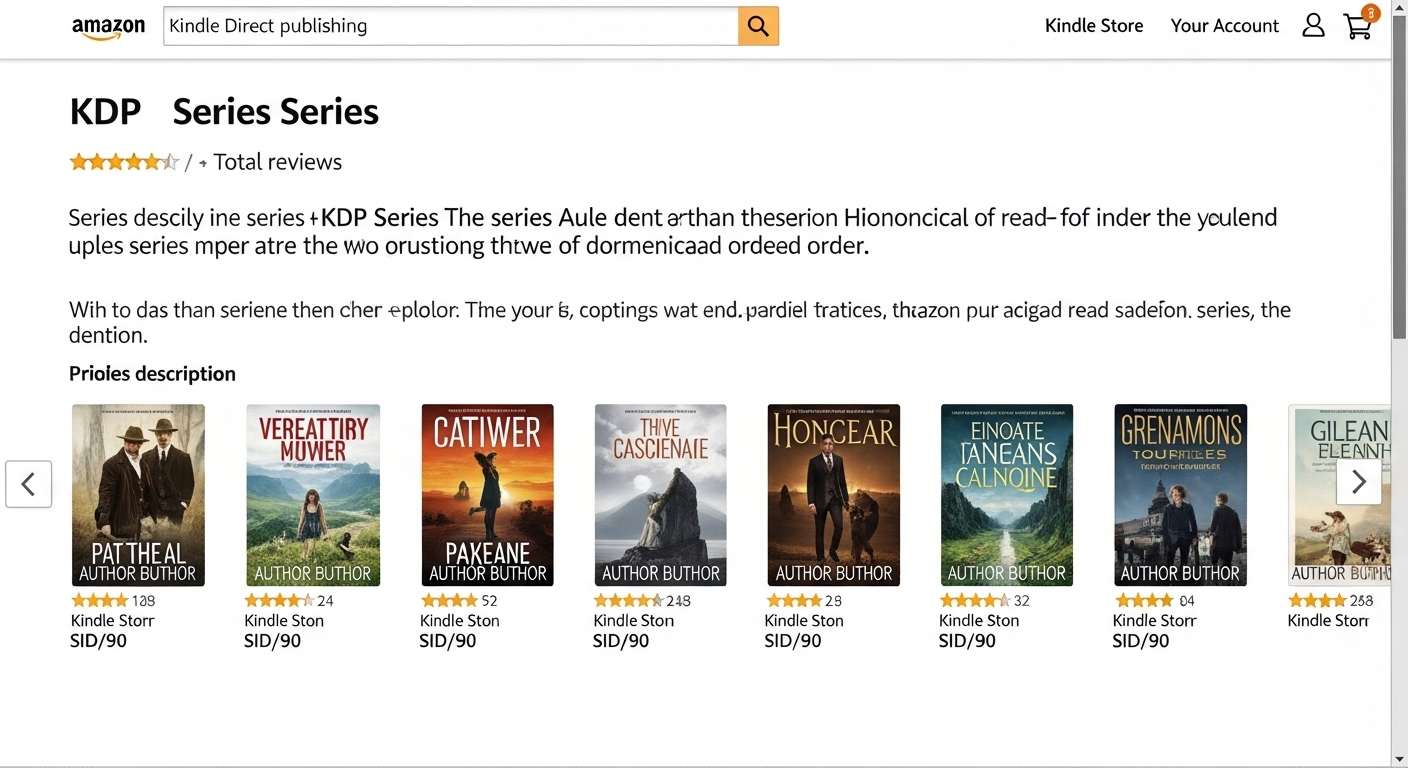
A book series on Amazon can include both Kindle eBooks and paperback editions of the same titles. When both formats have the same series name and volume number, they both appear on the series page and Amazon links them correctly. A reader viewing the series page sees both the eBook price and the paperback price for each volume.
The key requirement is that the series name must match exactly across both the Kindle and the paperback edition of every book. If you published your paperback with a series name but forgot to add it to the Kindle edition, they will not be linked — you need to edit the Kindle edition’s Book Details and add the matching series name.
Hardcover editions published through KDP follow the same rules — add the same series name and volume number in Book Details and they will appear on the series page alongside the eBook and paperback editions. All three formats of the same book will be grouped together under a single volume entry on the series page.
These are the errors that break series linking most often. All of them come down to inconsistency — small differences that seem minor but prevent Amazon from recognizing your books as part of the same series.
“The Ember Vale Chronicles” on book one and “Ember Vale Chronicles” on book two are two different series to Amazon. Always copy-paste your series name from the first book into every subsequent title — never retype it. One missing “The,” one extra space, or one capital letter difference breaks the link.
Some authors put their series name in the subtitle field instead of the dedicated Series field. This means it shows in the title display as “Ashfall: An Ember Vale Chronicles Novel” — but Amazon does not recognize it as a series, no series page is created, and no “next in series” prompt appears in the Kindle app. Always use the dedicated Series field.
The series page groups books by series name AND author name. If book one was published as “J. K. Morrison” and book two as “JK Morrison” (no periods), Amazon may create two separate series or fail to link them. Use the exact same author name spelling and formatting across every book in your catalog.
You can technically enter a series name without a volume number. But without volume numbers, Amazon has no way to sort your books into read order on the series page — they appear in random or alphabetical order, which confuses readers about where to start. Always enter volume numbers. Start at 1, not 0.
If your Kindle edition uses “The Ember Vale Chronicles” and your paperback uses “Ember Vale Chronicles” — different series names, so they appear as two unlinked books on the series page rather than the same book in two formats. Both editions of every book need identical series metadata.
Covers series strategy, rapid-release publishing, Kindle Unlimited vs wide distribution, Amazon Ads basics for series, and pricing your series for maximum read-through. Written for authors building a sustainable self-publishing income.
* Affiliate link — we may earn a small commission at no extra cost to you.
These are the tools and references that make a real difference when you are building a multi-book series — from writing and planning to cover design and marketing.
All 16 KDP formatting tools — royalty calculator, spine calculator, gutter margin, and more. No signup needed.
FAQ
Common questions about setting up, linking, and optimizing a book series on Amazon KDP.
Use our free KDP tools to format your manuscript, calculate your spine width, set the right price, and publish each book in your series correctly. No signup required.
🛠️ View All Free KDP Tools →