KDP Categories Guide 2026 — How to Choose the Right Amazon KDP Categories | KDP Smart Formatter
🛠️ All Tools 📖 How to Use 📗 Paperback Guide ✍️ Blog ❓ FAQ 🏠 Homepage →
🛠️ Tools:
All 16 Tools →
Home KDP Guides KDP Categories Guide 2026
📚 Categories Guide · Updated March 2026

KDP Categories Guide 2026 —
How to Choose the Right Amazon Categories

Choosing the wrong KDP categories is one of the most common and costly mistakes self-publishers make. The right category can mean the difference between a #1 bestseller badge and a book that never gets discovered. This guide explains exactly how Amazon’s category system works, how to find low-competition niches, and how to request up to 10 categories after publishing.

By KDPFormatters Team· Updated March 2026· ⏱ 11 min read· ✅ Free Category Finder Tool
KDP categories guide 2026 — how to choose the right Amazon KDP categories for your book
Choosing the right KDP categories is one of the highest-leverage decisions you can make for your book’s discoverability on Amazon — and most authors only think about it for 30 seconds.

Most authors spend months writing their book and about 90 seconds choosing their KDP categories — usually just picking whatever looks vaguely right in the dropdown. That is a significant missed opportunity. Your categories determine which bestseller lists your book competes on, which browse trees it appears in, and whether it ever gets a bestseller badge that can meaningfully boost its credibility and click-through rate.

This guide gives you the full strategy — from understanding how Amazon’s category tree works to finding low-competition niches where a modest number of daily sales can earn you that orange #1 tag.
How Amazon KDP Categories Actually Work

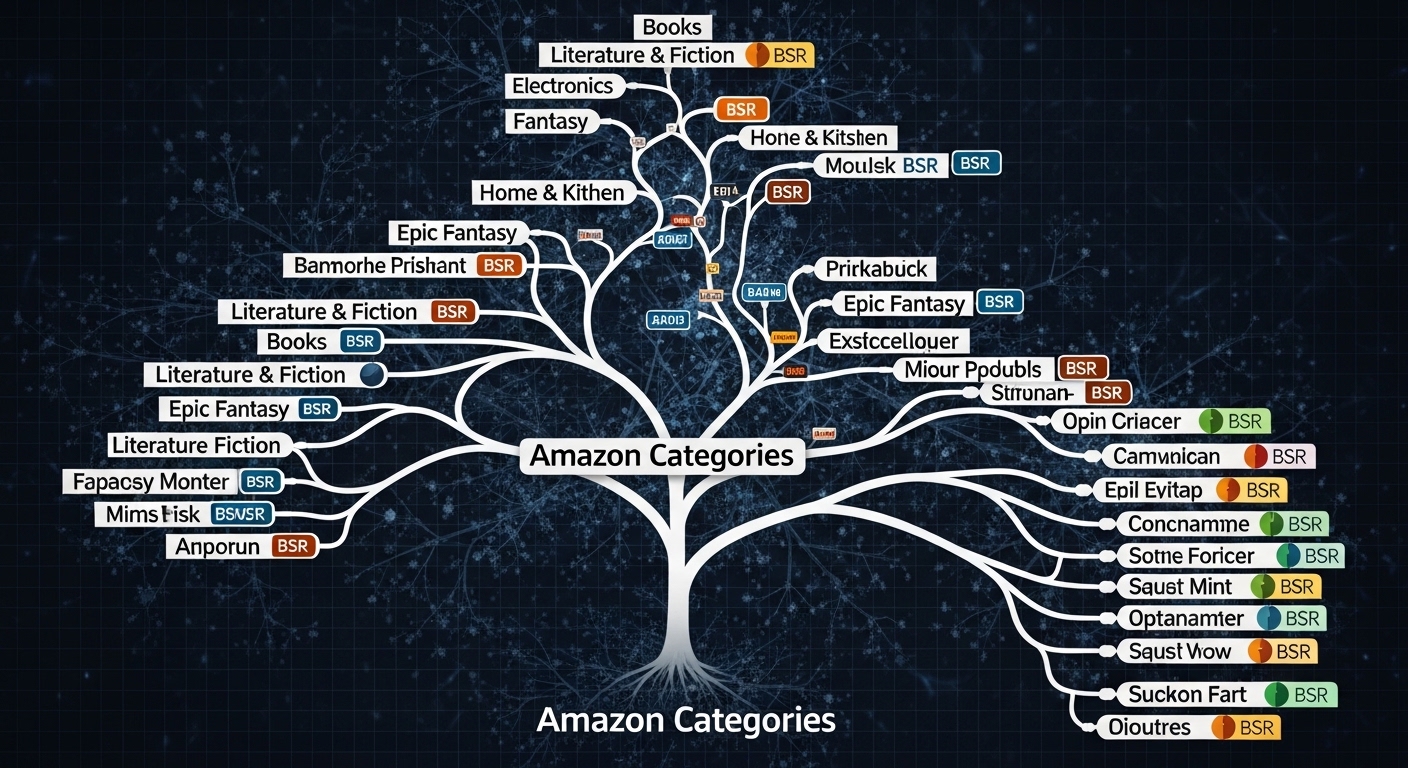
Amazon KDP category tree — how KDP book categories and browse nodes work for self-publishers
Amazon’s category tree goes from broad parent categories down to very specific subcategories. Your book gets its own BSR in every category it is listed in — not just the top level.

Amazon’s book category system is a hierarchical tree. At the top are broad parent categories like “Books > Business & Money” or “Books > Self-Help.” Below each parent are subcategories, and below those are sub-subcategories that can be extremely specific — things like “Books > Business & Money > Entrepreneurship & Small Business > Home-Based Businesses.”

Every book on Amazon has a Best Sellers Rank (BSR) — an overall rank across all books, and a separate rank in each category it is listed under. A book ranked #250,000 overall could be ranked #8 in a small subcategory. This is the core mechanic that makes category selection so strategically important for self-publishers.

ℹ️

You Get 2 Categories in the Dashboard — But Can Request Up to 10

During KDP publishing setup, you select 2 categories. After publishing, you can contact KDP support and request up to 10 total categories for your book. This is completely legitimate, widely used by experienced KDP authors, and covered in detail in the section below.

Category LevelExampleCompetitionBSR Needed for #1
Top LevelBooks > Business & MoneyExtremeBSR < 100
Sub-CategoryBusiness > EntrepreneurshipVery HighBSR < 1,000
Sub-Sub-CategoryEntrepreneurship > Small BusinessMediumBSR < 10,000
Niche Sub-CategorySmall Business > Home-BasedLowBSR < 50,000

🛠️ KDP Category Finder Tool

Select your book’s genre and type below. The tool will suggest the best primary category, 2–3 low-competition niche subcategories to target, and the full Amazon category path to use when contacting KDP support.

✅ Recommended Categories for Your Book
📧 How to Request Additional Categories from KDP Support
  1. Publish your book first (categories can only be added after publishing)
  2. Go to your KDP dashboard and copy your book’s ASIN (found in the book listing details)
  3. Contact KDP support via Help → Contact Us → select “Amazon Catalog” → “Update Book Details”
  4. In your message, state: “Please add the following categories to ASIN [your ASIN]:” and paste the full category paths from above
  5. KDP typically processes these requests within 3–5 business days
  6. You can request up to 10 total categories — 2 set yourself + up to 8 via support

BSR Strategy — How to Earn a #1 Bestseller Badge

The orange “#1 Best Seller” badge on an Amazon book listing is one of the most powerful conversion boosters available to self-publishers. It signals authority and social proof instantly — and it is entirely achievable in the right categories with a realistic number of daily sales.

The key insight is this: Amazon calculates your BSR within each category separately. A book that sells 5 copies per day might be ranked #80,000 overall — but in a small subcategory where the current #1 sells only 3 copies per day, your 5-copy day could earn you the top spot and the #1 badge.

How Many Sales Do You Need Per Day?

Category CompetitionSales/Day Needed for #1Strategy
Low-competition niche1–3 sales/dayAchievable with a small launch push
Medium subcategory5–15 sales/dayNeeds a launch plan or promotion
Popular subcategory20–50 sales/dayRequires significant marketing spend
Top-level category100+ sales/dayNot realistic without major platform
💡

The Badge Persists — Even After Sales Drop

Once your book earns a #1 bestseller badge, the “Amazon #1 Best Seller” label remains on your book listing even after your rank drops. Many authors time a short price discount or free promotion to spike sales and earn the badge, then raise the price back to normal. The badge stays visible and continues influencing buyer decisions long after the promotion ends.

🖊️

Premium Gel Pen Set — Author Essentials

Plan your category research, keyword lists, and launch strategy on paper before building your KDP listing. A good pen makes the planning phase faster — jot categories, BSR targets, and keyword ideas in one session before logging into KDP.

Affiliate link — we may earn a small commission at no extra cost to you
View on Amazon →

How to Find Low-Competition KDP Categories

KDP low competition categories — how to find niche Amazon KDP categories for bestseller ranking
The difference between a book that earns a bestseller badge and one that doesn’t often comes down to category selection — not sales volume. The right niche subcategory makes your book compete against far fewer titles.

Finding a low-competition category requires a few minutes of research directly on Amazon — no paid tools required. Here is the process:

  1. Go to Amazon.com and search for books in your genre. Click on any relevant result and scroll down to find its “Best Sellers Rank” under Product Details. Note the category names and rank numbers.
  2. Click on a category link. This takes you to the bestseller list for that category. Look at the #1 book’s rank — both its category rank (#1) and its overall BSR number (shown in its product details).
  3. Assess the BSR of the current #1 book. If the overall BSR is above 50,000, this is a low-competition category — a relatively small number of daily sales could get you to #1. If the #1 book has an overall BSR below 5,000, the category is competitive.
  4. Navigate deeper into subcategories. The more specific the subcategory, the lower the competition tends to be. Always explore 2–3 levels deeper than your first instinct.
  5. Verify your book genuinely belongs there. Amazon monitors category relevance. Listing your business book under “Children’s Education” to get an easy badge is against Amazon’s terms and will result in category removal.
⚠️

Never Choose Irrelevant Categories for Easy Rankings

Amazon actively reviews and removes books from categories that do not match their content. Authors who game the system by placing books in completely unrelated niche categories to earn easy badges risk having their book removed from all additional categories — and in repeat cases, having their account flagged. Choose categories that genuinely fit your book’s content.

How to Get Up to 10 KDP Categories

This is one of the most underused strategies in KDP publishing. By default, you select 2 categories during the publishing process. But Amazon allows up to 10 categories per book — and you can request the additional 8 by contacting KDP support directly after your book is live.

Step-by-Step: Requesting Additional Categories

  1. Wait until your book is published and live. Categories cannot be added to an unpublished book.
  2. Copy your book’s ASIN from your KDP dashboard (under Book Details → Amazon ASIN).
  3. Prepare your category list. For each additional category, you need the full exact path — for example: Books > Business & Money > Small Business & Entrepreneurship > Home-Based Businesses. Use the Category Finder tool above to get these paths.
  4. Contact KDP Support: kdp.amazon.com → Help → Contact Us → Topic: “Amazon Catalog” → Sub-topic: “Update Book Details.” In the message, provide your ASIN and paste the full paths of categories to add.
  5. Wait 3–5 business days for KDP to process the request. Check your book listing to confirm the new categories have been added.
💡

Use All 10 Category Slots Strategically

With 10 category slots, the smart approach is: 2 medium-competition categories that accurately describe your book, 4–5 low-competition niche subcategories where a #1 badge is achievable, and 2–3 related categories where even a top-10 ranking adds visibility. This gives you multiple bestseller badge opportunities while keeping your book in genuinely relevant browse trees.

📒

Hardcover Research Notebook — A5

Keep a dedicated notebook for your KDP publishing research — category paths, BSR data, keyword lists, and competitor analysis. Physical notes are faster to scan than browser tabs when you are deep in a research session.

Affiliate link — we may earn a small commission at no extra cost to you
View on Amazon →

Common KDP Category Mistakes to Avoid

  • Choosing only broad parent categories. Broad categories have thousands of competing books. You have almost no chance of ranking in “Books > Self-Help” but a realistic shot at “Self-Help > Stress Management > Mindfulness.” Always go specific.
  • Choosing irrelevant categories for easy rankings. Amazon removes books that don’t belong. The badge isn’t worth the risk if your book genuinely doesn’t fit the category.
  • Ignoring the 10-category limit. Most KDP authors use only 2. Using all 10 legitimate category slots dramatically increases your discoverability surface area — each category is a separate browsing entry point.
  • Never updating categories after the first publish. Markets shift. A category that was low-competition when your book launched may be crowded a year later. Review and update your categories every 6–12 months.
  • Not matching print and eBook categories. Your Kindle eBook and print book can be in different categories — and they should be, since the browse trees and competition levels differ between formats.

Kindle eBook vs Print Categories — Key Differences

Kindle eBooks and print books (paperback/hardcover) have separate category systems on Amazon. A category that appears available for Kindle may not exist for print, and vice versa. Some subcategories are exclusive to one format.

The practical implication: when you set up your KDP listing, the category dropdown will show you the categories available for that specific format. If you are publishing both a Kindle version and a print version, do your category research separately for each — and take advantage of the fact that the competition levels can differ significantly between formats for the same topic.

ℹ️

KINDLE UNLIMITED Books Have Additional Category Exposure

Books enrolled in KDP Select / Kindle Unlimited appear in KU browsing lists in addition to their standard categories. This adds a separate discovery channel that is independent of your category selection — KU readers often browse by genre lists rather than specific categories.

📚 Ready to Publish Your Book?

Use our free KDP tools to verify your margins, calculate your royalty, and check your minimum price before you go live — so your book is perfect before the categories start driving traffic.

Related KDP Guides

Frequently Asked Questions

KDP Categories — Common Questions Answered

Everything authors ask about choosing and managing Amazon KDP book categories.

During the initial KDP publishing setup, you can select up to 2 categories. After your book is published, you can request up to 10 total categories by contacting KDP support directly and providing your book’s ASIN along with the specific category paths you want added. This is a legitimate, widely-used strategy to increase your book’s visibility and bestseller badge opportunities.
Amazon Bestseller Rank (BSR) is a number assigned to every book on Amazon indicating how well it is selling relative to all other books. Every book has an overall BSR and separate BSRs for each category it is listed in. A book can be ranked #1 in a small subcategory while having an overall BSR of 50,000 — this is the core strategy behind choosing low-competition categories. Getting a #1 bestseller badge in a niche category is fully legitimate and can significantly boost your book’s perceived authority.
Yes. You can change your 2 dashboard categories at any time by going to your KDP dashboard, selecting your book, clicking Edit, and navigating to the Keywords and Categories page. For additional categories beyond the 2 you set yourself, contact KDP support with your ASIN and the exact category paths — they typically process these requests within 3 to 5 business days.
BISAC (Book Industry Standards and Communications) categories are industry-standard classification codes used by publishers, libraries, and retailers worldwide. Amazon’s browse categories are Amazon’s own navigation system, which is much more granular than BISAC. When you select categories in KDP, you are selecting Amazon browse categories — not BISAC codes. BISAC codes appear in your book’s metadata but are separate from the browse categories that determine where your book appears in Amazon search results.
A low-competition KDP category is one where the current #1 bestseller has a relatively high overall BSR number — meaning it does not need to sell many copies per day to hold the top spot. A category where the #1 book has an overall BSR above 50,000 is generally accessible — a book selling 3 to 5 copies per day could potentially reach #1. Categories where the #1 book has a BSR below 500 are extremely competitive and require consistent high daily sales.
For most books, a mix of both works best. Choose one broader parent category that accurately describes your book’s genre — for visibility in the larger browse tree. Then choose one or two specific subcategories where competition is lower and your book has a realistic chance of ranking in the top 10. Avoid categories that are completely unrelated to your book — Amazon monitors category relevance and may remove you from categories your book does not genuinely fit.
KDP categories indirectly affect your Amazon search ranking by determining which browse tree your book appears in and which bestseller lists it competes on. A book that earns a #1 bestseller badge often sees a temporary boost in search visibility. However, Amazon’s A9 algorithm primarily ranks books based on keyword relevance and sales/conversion rate — not category placement alone. Categories are primarily a browsing and discovery mechanism rather than a direct ranking signal.

Get Your Book Ready to Publish

Categories get readers to your listing — but your book still needs the right formatting, pricing, and specs to convert. Use our free KDP tools to make sure every detail is right before you go live.

🛠️ View All Free KDP Tools →